

Our Verdict
Both touchscreen and button-controlled GPS units have genuine strengths. Button-controlled devices reward muscle memory and allow tactile operation without visual attention, making them particularly suited to drivers who value simplicity and eyes-on-the-road safety. Touchscreen units offer cleaner visuals and more intuitive destination entry, but require precise taps that can be harder while the vehicle is moving. For most senior drivers, the key factor is personal comfort with the interface — and prioritizing voice guidance reduces the need to interact with either type while driving.
| Best for | Recommended |
|---|---|
| Drivers who prefer familiar, tactile controls | Button-controlled GPS units |
| Drivers who want larger, easier-to-read maps | Touchscreen GPS units |
| Anyone who wants minimal mid-drive interaction | Either type, with voice guidance enabled |
Why the Interface Type Matters for Driving Safety
GPS navigation has become one of the most valuable tools available to drivers of all ages. But not all navigation interfaces are equally easy to use behind the wheel — and the difference matters most when you're moving through traffic, merging onto a highway, or navigating an unfamiliar intersection.
For senior drivers, the choice between a touchscreen and a button-controlled GPS device often comes down to two key questions: How much can I interact with it safely while the car is moving? And how quickly can I learn to use it with confidence?
If you're just getting started with GPS navigation, this introduction to GPS devices covers the fundamentals before you dive into the interface comparison below.
| Button-Controlled GPS | Touchscreen GPS | |
|---|---|---|
| Tactile operation (eyes-free use) | Strong — buttons can be felt | Limited — requires visual precision |
| Map and text display size | Smaller screen area | Larger, clearer map display |
| Destination entry speed | Slower — scroll-and-select menus | Faster — tap-to-type keyboard |
| Ease of learning for new users | Predictable, consistent button layout | Intuitive but requires practice |
| Suitability with motor precision changes | High — large physical buttons | Variable — depends on icon size |
| Voice guidance compatibility | Available on most devices | Available on most devices |
Button-Controlled GPS Units: Familiar and Tactile
Devices with physical buttons allow you to navigate menus, confirm turns, and adjust volume without looking directly at the screen. Your fingers learn where the controls are through repeated use — a quality called tactile feedback — so you can make quick adjustments with your eyes on the road.
This style of interface tends to feel more familiar to drivers who grew up using physical controls in appliances, car radios, and older phones. The learning curve is usually predictable: you press a button, something happens, and the response is immediate and consistent.
Set Up Your Route Before You Drive
The safest habit with any GPS — touchscreen or button-controlled — is to program your destination while parked. Spend a few minutes at home or before leaving a parking lot to confirm your route, adjust settings, and test the voice volume. This eliminates nearly all mid-drive interaction and keeps your attention where it belongs: on the road.
One limitation is that button-controlled units can feel cluttered if menus are deeply nested, requiring several presses to reach a function. Devices with fewer, clearly labeled buttons generally perform better in real-world use than those with many small, closely spaced controls.
Touchscreen GPS Units: Visual Clarity With Trade-Offs
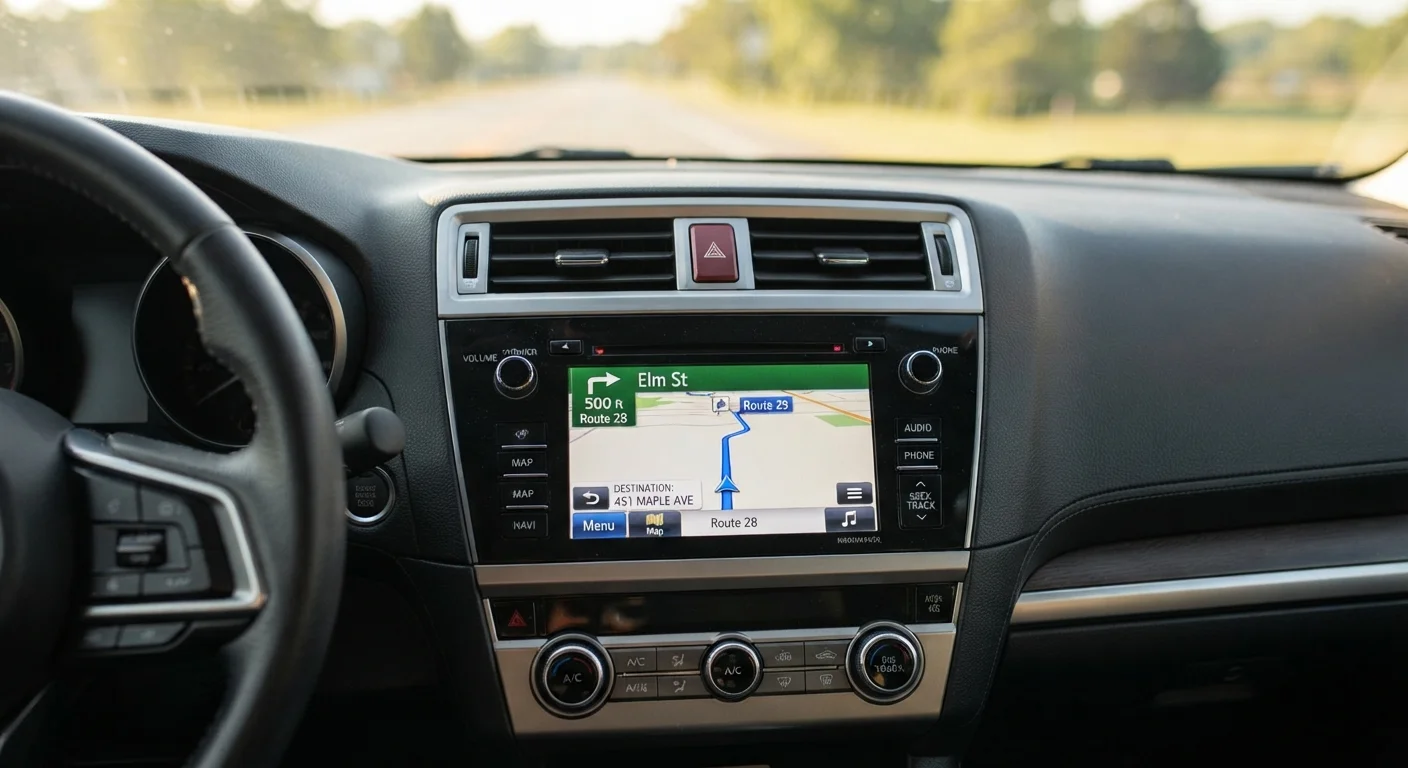
Touchscreen GPS units typically offer more visual space for maps because there's no dedicated button area taking up the device's frame. Text, icons, and route information can be displayed larger, which is a real benefit for drivers who find small print difficult to read quickly.
Entering a destination address is often faster on a touchscreen — you type or tap rather than scroll through letter-by-letter menus. For setup before a trip, this can save meaningful time and frustration.
However, touchscreen operation while driving requires more visual precision. Tapping a small icon accurately on a moving screen is harder than pressing a physical button you've memorized. Finger tremors or reduced motor precision — common with age — can make this more challenging. Navigation features designed for older drivers, such as large-icon layouts and voice-activated controls, can partially offset this difficulty.
Avoid Adjusting Your GPS While Moving
Interacting with any navigation screen while driving — even briefly — increases the risk of distraction-related incidents. If you need to change your route or re-enter a destination, pull over safely before making adjustments. This applies equally to touchscreen and button-controlled devices.
The Role of Voice Guidance in Both Interface Types
Regardless of which interface style you choose, enabling turn-by-turn voice guidance is the single most effective way to reduce the need to look at or touch your device while driving. A well-calibrated voice prompt tells you when to turn, what lane to use, and how far you are from your next instruction — all without requiring any screen interaction.
Most modern GPS units — both touchscreen and button-controlled — include voice guidance. The quality and clarity of the spoken directions vary by device, so it's worth testing the volume and phrasing before relying on it in unfamiliar areas.
For a broader look at how in-car technology can support safer and less stressful navigation, see this overview of navigation and connectivity tech for senior drivers.
Practical Tips for Choosing and Using Either Type
Before purchasing a GPS unit, consider visiting a store where you can handle the device, press the buttons or tap the screen, and assess how naturally it responds to your touch. This hands-on step is more revealing than any specification sheet.
- Always set your destination before you start driving. Neither interface type is designed for safe use while the vehicle is in motion for extended interactions.
- Adjust screen brightness and text size to suit your vision before your first trip.
- Practice at home or in a parked car until navigating the menus feels routine.
- Use the device's volume control to set voice guidance loud enough to hear over road and traffic noise.
If you're weighing a dedicated GPS unit against using your smartphone for navigation, this comparison of mounted GPS devices and phone apps outlines the practical differences. And if you're considering a dash-mounted screen more broadly, this look at dash-mounted screen trade-offs is worth reviewing before you decide.
The content on this site is for informational purposes only and is not a substitute for professional advice. Always consult a qualified professional for guidance specific to your situation.