

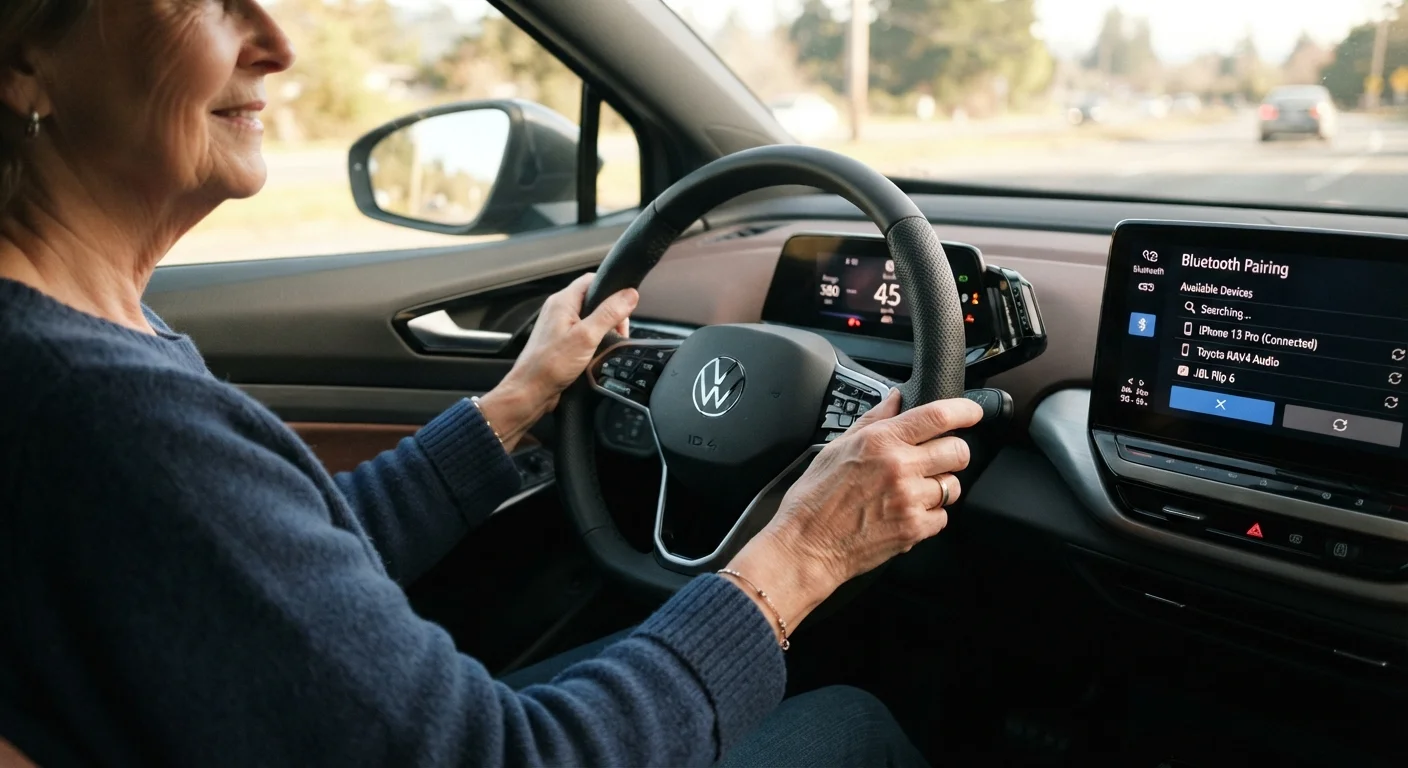
Why Bluetooth Pairing Is Worth the One-Time Effort
Making calls while driving is one of the most common reasons drivers look at their phones — and one of the most dangerous. Bluetooth hands-free calling solves this problem elegantly: once your phone is paired with your car, you can answer and end calls using buttons on your steering wheel or a voice command, keeping both hands on the wheel and your eyes on the road.
For senior drivers especially, this technology removes the need to search for a phone in a bag or pocket mid-drive. As explained in our guide to Bluetooth hands-free calling, the safety benefits are significant and the setup is a one-time task. After that, everything happens automatically.
If you are also exploring other in-car technology, our overview of connectivity tech for senior drivers covers GPS, backup cameras, and more in plain language.
What you will need
What You Need Before You Start
Most vehicles built after 2010 include a built-in Bluetooth system, though the menu names and screen layouts vary by manufacturer. Before beginning, park the car in a safe location — a driveway or parking lot works perfectly. You do not need a Wi-Fi connection or a data plan active on your phone; Bluetooth works independently of the internet.
Smartphone
The device you will pair with the car's system to enable hands-free calling.
Vehicle Owner's Manual
Provides model-specific Bluetooth menu names and steps that may differ from general instructions.
If your car is older and does not have built-in Bluetooth, a plug-in hands-free adapter is an alternative worth exploring. Our step-by-step guide to setting up in-car devices offers useful context on adding technology to an existing vehicle.
Step-by-Step: Pairing Your Phone
Follow each step below in order. The process typically takes five to ten minutes the first time. Once completed, your phone and car will reconnect on their own every time you drive.
Turn on your phone's Bluetooth
Open your phone's Settings app. Look for a section labeled Bluetooth or Connections and tap it. Toggle the Bluetooth switch to the On position — it usually turns blue or green when active. Your phone is now discoverable and ready to detect nearby devices.
Put your car's system into pairing mode
Start your vehicle or turn the ignition to the accessory position. Navigate to your infotainment screen — this is the touchscreen or menu panel on your dashboard. Look for a menu option called Phone, Bluetooth, or Connections. Select Add Device, Pair New Device, or a similar option. The system will indicate it is searching for nearby phones.
Select your car on your phone
On your phone's Bluetooth screen, wait for a list of Available Devices to appear. Your car's name will show up — it often includes the vehicle brand or model (for example, MyFord or Toyota Audio). Tap your car's name to begin pairing.
Confirm the PIN code
A numeric PIN code — typically four to six digits — will appear on both your phone screen and your car's display. Verify the numbers match, then confirm on both devices by tapping Pair, Connect, or Yes. This step ensures you are connecting to your own vehicle and not another nearby device.
Allow contacts and audio access
Your car's system may ask permission to access your phone's contacts and call history. Granting this access lets you dial contacts by name through the car's display or voice commands. You can choose to allow or decline — the hands-free calling feature will work either way, though declining limits search convenience.
Test the connection with a call
Once paired, place a short test call using your car's phone controls — either the touchscreen dial pad or the steering wheel phone button. Speak at your normal voice level and confirm the other person can hear you clearly. Adjust the in-call volume using your car's volume knob or screen slider if needed.
Your Phone Will Reconnect Automatically
After the first successful pairing, your phone and car will recognize each other and connect automatically each time you start the vehicle with Bluetooth enabled. You generally will not need to repeat these steps unless you get a new phone or reset your car's system.
Troubleshooting a Failed Pairing
If the pairing does not complete, go to your phone's Bluetooth settings and delete (or 'forget') any previous entry for your car, then repeat the steps above. On the car's side, look for an option to delete saved phones and clear the list before trying again. Starting fresh resolves most pairing failures.
What to Do If Something Goes Wrong
Bluetooth pairing hiccups are common and almost always fixable without professional help. The most frequent problem is that one device remembers an old, incomplete connection. Deleting the saved pairing on both your phone and your car's system, then starting fresh, resolves this in most cases.
Complete Setup Before You Drive
Bluetooth pairing requires tapping through menus on both your phone and your car's screen. Always finish the entire pairing process while the vehicle is stationary. Interacting with screens while moving significantly increases the risk of an accident, even on quiet roads.
If your car's infotainment screen is unresponsive, a full system restart — turning off the ignition, waiting 60 seconds, and restarting — often clears temporary software glitches. When in doubt, your vehicle's owner's manual contains model-specific troubleshooting steps that are more accurate than any general guide.
The content on this site is for informational purposes only and is not a substitute for professional advice. Always consult a qualified professional for guidance specific to your situation.